
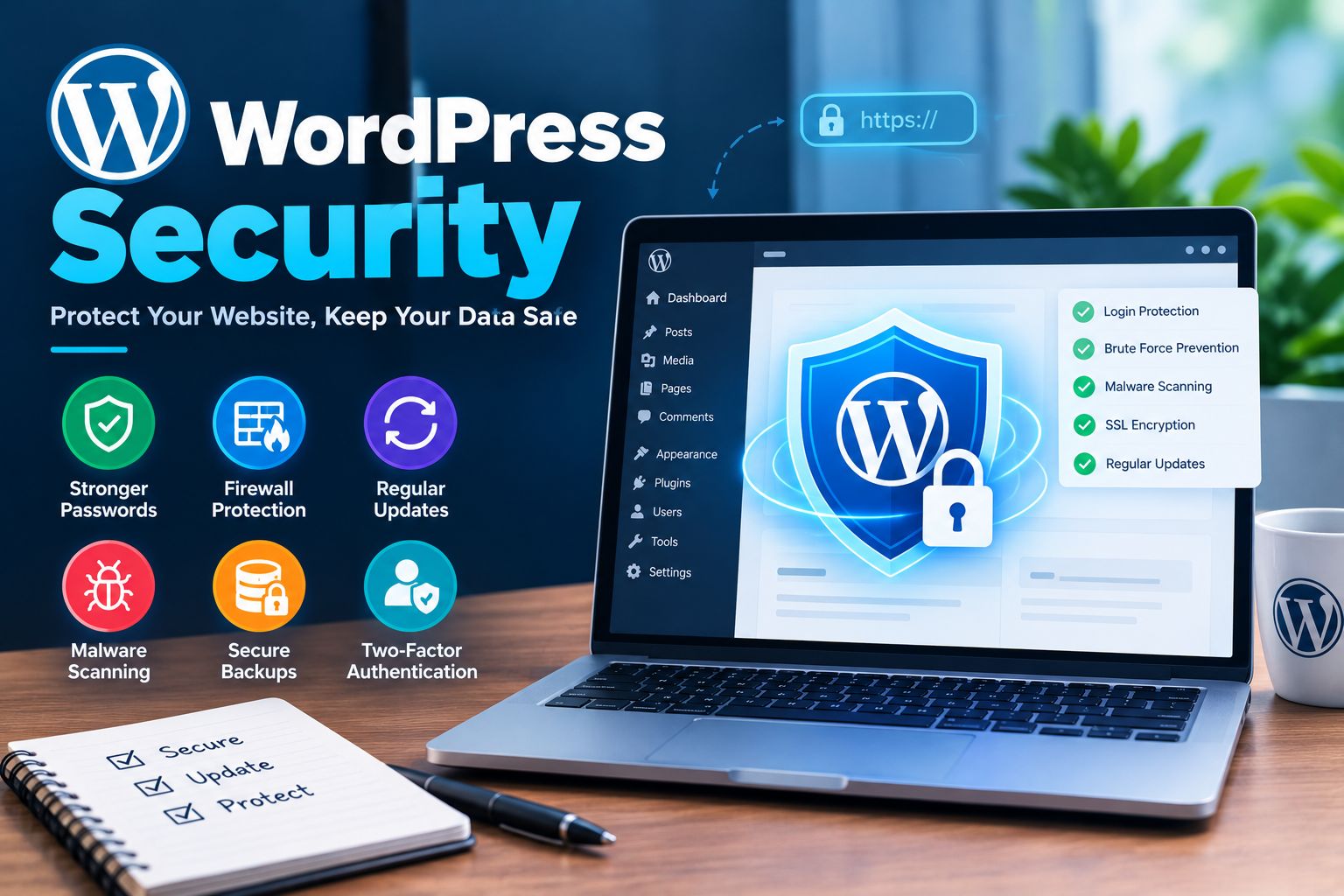
What Is WordPress Security?
Secure a WordPress means protecting your website, administrator accounts, files, database, and visitors from unauthorized access and other security threats.
Security is not a single plugin or setting.
It is a combination of:
- Software updates
- Strong authentication
- Backups
- Secure hosting
- User permissions
- Monitoring
- Safe development practices
The official WordPress security documentation recommends keeping WordPress and installed plugins and themes updated as a fundamental security practice.
Why WordPress Security Matters
A compromised website can experience:
- Unauthorized administrator access
- Malware
- Spam pages
- Redirects
- Defaced content
- Data exposure
- SEO problems
For business websites, security should be considered from the beginning of development.
1. Keep WordPress Updated
One of the most important WordPress security practices is keeping WordPress itself updated.
Also maintain:
- Themes
- Plugins
- PHP
- Server software
Older software may contain known vulnerabilities.
WordPress recommends keeping the software used by your website current.
2. Use Strong Passwords
Never use simple passwords such as:
123456
or:
admin123
Use unique, long passwords for important accounts.
Avoid passwords based on your:
- Name
- Website name
- Company
- Username
WordPress security guidance specifically recommends strong passwords and avoiding predictable information.
3. Enable Two-Factor Authentication
Two-factor authentication adds another layer of protection.
Even if someone discovers your password, they may still need the second authentication method.
Use 2FA for administrator accounts whenever your setup supports it.
4. Limit Administrator Accounts
Do not give administrator privileges to every user.
Only users who need full administrative access should have it.
Use appropriate WordPress roles for other users.
5. Remove Unused Plugins
Unused plugins increase the number of components that need to be maintained.
If you no longer need a plugin, remove it.
Do not install plugins from suspicious or unofficial sources.
6. Use Trusted Themes and Plugins
Choose software that is actively maintained and comes from reliable sources.
Before installing a plugin, consider:
- Update history
- Developer reputation
- Compatibility
- Support
- User reviews
- Documentation
- Install SSL
HTTPS protects communication between visitors and your website.
Make sure your website consistently uses HTTPS and that there are no mixed-content issues.
8. Create Regular Backups
A backup is an important part of website recovery.
Back up:
- Database
- WordPress files
- Media
- Configuration
Keep backups separate from the live website whenever possible.
9. Protect the Login Page
Administrator login pages are common targets for automated attacks.
Useful protections can include:
- Strong passwords
- 2FA
- Login rate limiting
- Security monitoring
- Appropriate firewall controls
10. Monitor Website Activity
Regularly check for unexpected changes.
Look for:
- Unknown users
- New plugins
- Modified files
- Suspicious redirects
- Unexpected content
- Unusual login activity
11. Secure Your Hosting
Website security is not only about WordPress.
Your hosting environment also matters.
Choose a hosting provider that maintains secure server infrastructure and provides appropriate security controls.
WordPress notes that vulnerabilities can exist at the web-server and network levels as well as within WordPress itself.
12. Protect wp-config.php
The wp-config.php file contains important WordPress configuration information.
Access to this file should be properly restricted.
Server-level protection can help prevent unauthorized access.
13. Disable Unnecessary File Editing
WordPress includes administrator file-editing capabilities that can be restricted when appropriate.
This can reduce the ability to modify theme and plugin PHP files directly from the dashboard.
14. Use Appropriate File Permissions
Incorrect file permissions can create security problems.
Permissions should allow WordPress and the server to perform required operations without unnecessarily exposing files to modification.
15. Monitor and Maintain Your Website
Good WordPress security requires ongoing maintenance.
Create a routine for:
- Updates
- Backups
- Security checks
- User review
- Plugin review
- Performance checks
WordPress Security Checklist
- Use this checklist regularly:
- WordPress updated
- Plugins updated
- Themes updated
- Strong administrator passwords
- 2FA enabled
- Unused plugins removed
- SSL active
- Regular backups configured
- Administrator accounts reviewed
- Website activity monitored
- Hosting security reviewed
Frequently Asked Questions
Is WordPress secure?
WordPress includes many security features, but website owners still need to maintain WordPress, plugins, themes, hosting, passwords, and access controls.
What is the most important WordPress security step?
Keeping WordPress, themes, and plugins updated is one of the fundamental security practices recommended by WordPress.
Do I need a WordPress security plugin?
A security plugin can provide additional features, but security should not depend on a single plugin. Updates, passwords, backups, hosting, permissions, and monitoring are also important.
How often should I back up WordPress?
The appropriate backup frequency depends on how frequently your website changes. A frequently updated ecommerce website generally needs more frequent backups than a rarely updated brochure website.