
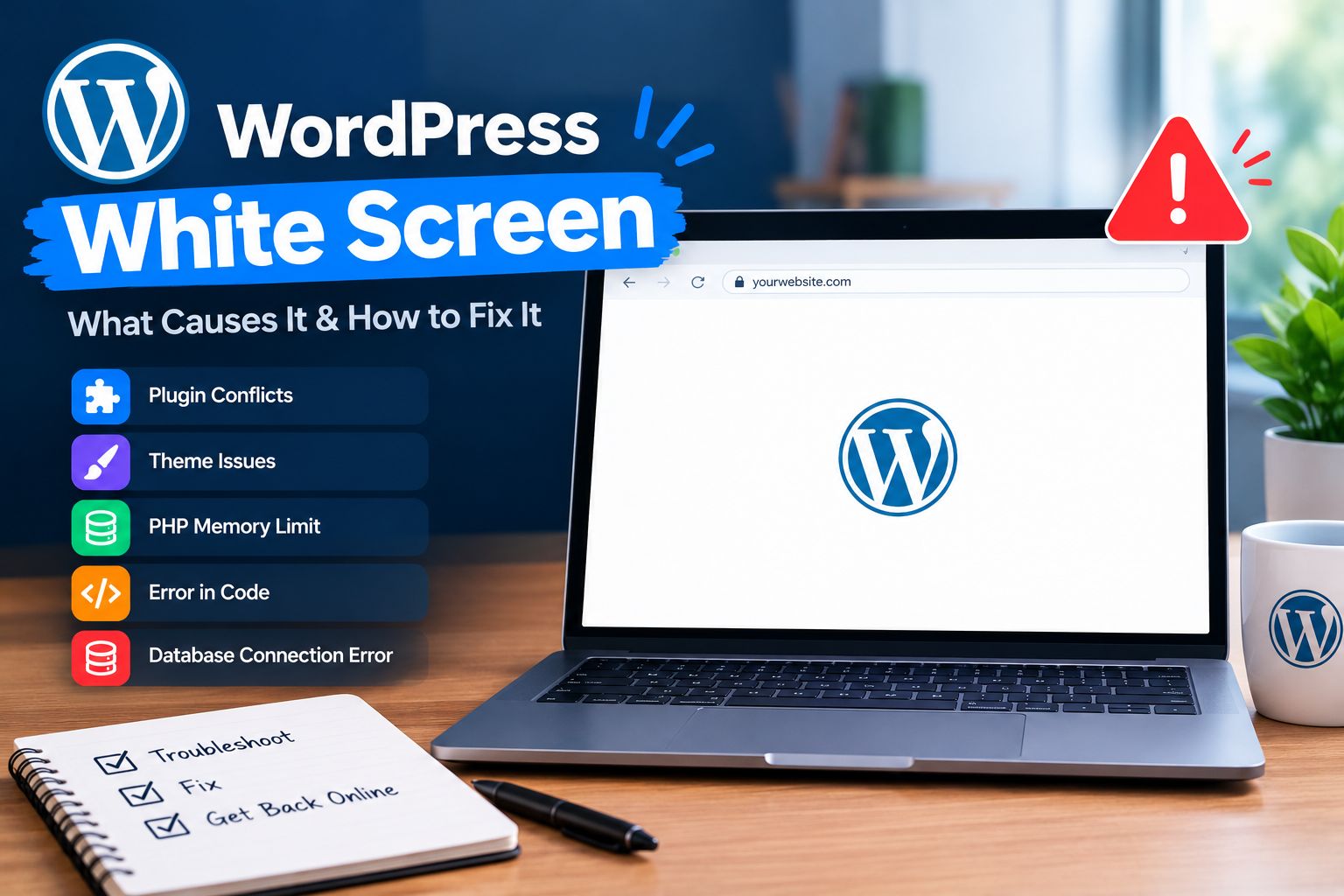
What Is the WordPress White Screen?
The WordPress white screen is a common WordPress problem where the website displays a blank or nearly blank page instead of its normal content.
The WordPress dashboard may also become inaccessible.
This issue is sometimes called the “White Screen of Death.”
It can happen after installing a plugin, updating a theme, changing custom code, migrating a website, or reaching server resource limits.
Why Does the WordPress White Screen Happen?
The WordPress white screen can be caused by several issues.
Common causes include:
- Plugin conflicts
- Theme conflicts
- PHP errors
- Insufficient memory
- Failed updates
- Broken custom code
- Corrupted files
- Server configuration problems
WordPress provides dedicated debugging tools that can help developers identify PHP errors, warnings, and notices.
1. Create a Website Backup
Before making major changes, create a complete backup.
Your backup should include:
- WordPress files
- Database
- Media files
- Theme files
- Plugin files
Having a working backup makes troubleshooting much safer.
2. Disable WordPress Plugins
A plugin conflict is one of the first things you should investigate.
If you can access the WordPress dashboard, go to:
Plugins → Installed Plugins
Deactivate recently installed or updated plugins first.
If you cannot access the dashboard, plugins can be disabled through your hosting file manager or FTP by temporarily changing the plugins directory name.
3. Switch the WordPress Theme
Themes can also cause a WordPress white screen.
If possible, switch temporarily to a default WordPress theme.
If the website becomes accessible, investigate your previous theme.
Pay particular attention to:
- Custom PHP
- Theme functions
- Custom templates
- Theme updates
- Third-party integrations
4. Increase PHP Memory
A website can experience problems when it reaches available PHP memory limits.
This can happen on websites with:
- Large plugins
- Complex Elementor layouts
- WooCommerce
- Large databases
- Multiple integrations
Ask your hosting provider to review PHP memory and server resources.
5. Enable WordPress Debugging
WordPress includes debugging functionality designed to help developers identify errors.
For development or staging environments, WP_DEBUG can help reveal PHP errors.
WordPress documentation specifically recommends using debugging tools during development and staging rather than exposing detailed errors publicly on production websites.
6. Check Recent Updates
Think about what changed immediately before the white screen appeared.
Did you:
- Update a plugin?
- Update the theme?
- Update WordPress?
- Add custom code?
- Install a new plugin?
- Change hosting?
The most recent change is often a useful starting point.
7. Check Server Error Logs
If WordPress debugging does not reveal the cause, check your hosting error logs.
Server logs may identify:
- PHP fatal errors
- Memory issues
- Permission problems
- Server configuration errors
If you do not understand the logs, share the relevant error with your hosting provider or developer.
8. Restore a Working Backup
If the problem occurred immediately after a major update and you have a verified backup, restoring the last working version may be appropriate.
Always understand what data will be lost before restoring.
9. Contact Your Hosting Provider
Sometimes the issue is outside WordPress itself.
Your hosting provider can check:
- Server errors
- PHP configuration
- Resource usage
- File permissions
- Security systems
- Database problems
How to Prevent the WordPress White Screen
Use a maintenance process that includes:
- Regular backups
- Staging tests
- Plugin updates
- Theme updates
- WordPress updates
- Security monitoring
- Performance monitoring
Frequently Asked Questions
What causes the WordPress white screen?
Plugin conflicts, theme errors, PHP errors, memory limitations, failed updates, and custom code are common causes.
Can a plugin cause a blank WordPress website?
Yes. A plugin can contain incompatible code or conflict with another component.
How can I access WordPress when the website is blank?
If the dashboard is also inaccessible, you may need to use hosting file management or FTP to disable a suspected plugin or theme.
Should I enable debugging on a live website?
Detailed debugging output should generally not be exposed publicly on production websites. Use debugging carefully and preferably in staging or development environments.
Conclusion
The WordPress white screen can be alarming, but it is often possible to identify the underlying cause.
Start with a backup, investigate recent changes, test plugins and themes, review memory and error logs, and use WordPress debugging tools carefully.
For official technical information, see the WordPress Debugging documentation.
Suggested Internal Links
/fix-404-error-wordpress//elementor-not-loading//secure-wordpress-website/
Suggested Image ALT Text
WordPress white screen errorHow to fix WordPress white screenWordPress debugging screen